Add-PSSnapin microsoft.sharepoint.powershell
$site = Get-SPSite http://sharepoint.contaso.com
$proxy = Get-SPServiceApplicationProxy | ?{$_.TypeName -eq 'Workflow Service Application Proxy'}
$proxy.GetHostname($site)
Add-PSSnapin microsoft.sharepoint.powershell
$site = Get-SPSite http://sharepoint.contaso.com
$proxy = Get-SPServiceApplicationProxy | ?{$_.TypeName -eq 'Workflow Service Application Proxy'}
$proxy.GetHostname($site)
Add-PSSnapin Microsoft.SharePoint.PowerShell -ErrorAction SilentlyContinue
Function Add-CustomAction
{
param
(
[parameter(Mandatory=$true, ParameterSetName='Site')]
[Microsoft.SharePoint.SPSite]$Site,
[parameter(Mandatory=$true, ParameterSetName='Web')]
[Microsoft.SharePoint.SPWeb]$Web,
[parameter(Mandatory=$true, ParameterSetName='Site')]
[parameter(Mandatory=$true, ParameterSetName='Web')]
[string]$Message,
[parameter(Mandatory=$true, ParameterSetName='Site')]
[parameter(Mandatory=$true, ParameterSetName='Web')]
[string]$ActionName,
[parameter(Mandatory=$false, ParameterSetName='Web')]
[switch]$IncludeSubWebs,
[parameter(Mandatory=$true, ParameterSetName='Site')]
[parameter(Mandatory=$true, ParameterSetName='Web')]
[string][ValidateSet("Red", "Yellow", "Green", "Blue")]$BackGroundColor
)
begin
{
# To avoid quote conflicts
$Message = $Message.Replace( "`"", "'")
$startingSequence = 1100
$JavaScript = @"
function Execute_$($ActionName)_MessageBar_$($PSCmdlet.ParameterSetName)()
{
var st = document.getElementById('$ActionName');
if(st != null)
{
st.style.display = '';
return;
}
st = document.createElement("div");
st.id = "$($ActionName)_MessageBar_$($PSCmdlet.ParameterSetName)";
st.innerHTML = "<div class='ms-status-$($BackGroundColor.ToUpper())' style='padding: 12px 14px 6px; border: 1px solid; font-family: \"Segoe UI\", Tahoma, sans-serif; font-size: 13px; min-height: 24px; font-weight: bold; background-color:Yellow;'>$Message</div>";
document.body.insertBefore(st, document.body.childNodes[0]);
}
// don't show on modal dialog windows
if(!window.location.search.match("[?&]IsDlg=1"))
{
Execute_$($ActionName)_MessageBar_$($PSCmdlet.ParameterSetName)();
}
"@
}
process
{
$customAction = $null
if( $PSCmdlet.ParameterSetName -eq "Site" )
{
Remove-CustomAction -Site $site -ActionName $ActionName | Out-Null
$customAction = $Site.UserCustomActions.Add()
}
else
{
Remove-CustomAction -Web $Web -ActionName $ActionName | Out-Null
$customAction = $Web.UserCustomActions.Add()
}
$customAction.Location = "ScriptLink"
$customAction.Sequence = $startingSequence
$customAction.Title = $ActionName
$customAction.ScriptBlock = $JavaScript
$customAction.Update()
if( $IncludeSubWebs )
{
foreach($w in $Web.Webs)
{
Add-CustomAction -Web $w -Message $Message -ActionName $ActionName -IncludeSubWebs -BackGroundColor $BackGroundColor
}
}
}
end
{
}
}
Function Remove-CustomAction
{
param
(
[parameter(Mandatory=$true, ParameterSetName='Site')]
[Microsoft.SharePoint.SPSite]$Site,
[parameter(Mandatory=$true, ParameterSetName='Web')]
[Microsoft.SharePoint.SPWeb]$Web,
[parameter(Mandatory=$true, ParameterSetName='Site')]
[parameter(Mandatory=$true, ParameterSetName='Web')]
[string]$ActionName
)
begin
{
$existingActions = @()
}
process
{
if( $PSCmdlet.ParameterSetName -eq "Site" )
{
$Site.UserCustomActions | ? { $_.Title -eq $ActionName } | % { $existingActions += $_ }
$existingActions | % { $Site.UserCustomActions.Item($_.Id).Delete() }
}
else
{
$Web.UserCustomActions | ? { $_.Title -eq $ActionName } | % { $existingActions += $_ }
$existingActions
$existingActions | % { $Web.UserCustomActions.Item($_.Id).Delete() }
}
}
end
{
}
}
$sites = get-spsite "http://sharepoint.com/sites/test" #-Limit all -webapplication http://webapplicationurl/
foreach($site in $sites)
{
Add-CustomAction -Site $site -Message “We are planning to migrate this site to Sharepoint 2016 on date ********** The new site URL is 'https://sharepoingonline.com/sites/coc2' " -ActionName "SiteMovedBanner" -BackGroundColor "Red"
#Remove-CustomAction -Site $site -ActionName "SiteMovedBanner"
}
Note: This Article is created based on the experience in recent MI, Microsoft has clearly stated this process has to be done by approaching Microsoft. Please log MS ticket before doing this activity. below steps are supposed to be performed with Microsoft on the call.
Step1 : Workflow manager certificate and service bus certificate have both expired.
Workflow services will be automatically stopped once workflow manger certificate expires.
Step 2:
clock should be turned back to a time when the cert is still available, and run the commands on workflow manger server
# Check SB and WFM status
Get-sbfarm
Get-sbfarmstatus
Get-wffarm
Get-wffarmstatus
The actions we have taken:
1. Backup all WFM and Service Bus Databases. Take WFM server’s VM snapshot too.
2. Make sure that the clock is turned back to a time when the cert is still available.
3. Run some commands to generate new certificates.
$CertKey=convertto-securestring "YourSecretPassword" -asplaintext -force
Set-WFCertificateAutoGenerationKey -Key $CertKey
Set-SBCertificateAutogenerationKey -Key $CertKey
4. Open MMC to import certificates to 'Trusted Root Certificate Authorities' -> 'Certificate'.
5. Run some commands:
Stop-WFHost
Stop-SBFarm
Update-SBHost
Start-SBFarm
# Check SB status after start
Get-SBFarm
Get-SBFarmStatus
# Complete the WFM configuration to update nodes
Stop-WFHost
Update-WFHost -CertificateAutoGenerationKey $CertKey
Start-WFHost
# Check WFM status after start
Get-WFFarm
Get-WFFarmStatus
6. Change the system time back to the current time. Restart the server.
Status:
Workflow manager certificate expired issue has been resolved. Run commands again.
# Check SB status
Get-sbfarm
Get-sbfarmstatus
# Check WFM status
Get-wffarm
Get-wffarmstatus
Passed WFMQuickTest.
## Script to set sites readonly or NoAccess##
<#
Inputs
$sourcefile = Specify the location of input TXT file containing list of sites. Simple text file containing all the site URLs -
$LockInformation = additional information about the lock , Work order number and description
$locktype = select whether you need to select site as Readonly or NoAccess
#>
#------------Define Inputs--------------#
# Enter change number and any other text description
$LockInformation = "Description"
# List of site URLs
$sourcefile = "D:\Sitelist.txt"
# Set the below variable to Readonly or NoAccess based on your requirement
$locktype = "ReadOnly"
# Enter Log file name and path to store output
$LogFile = "D:\SiteLockUpdate.log"
#-----------Do not edit below this line-------------#
#Initiate Log File
"SiteURL|LockStatus" | Out-File $LogFile
#Load snapin
Add-PSSnapin Microsoft.sharepoint.powershell -ErrorAction SilentlyContinue
$sites = Get-Content $sourcefile
foreach ( $site in $sites )
{
try
{
$SPSite = Get-SPSite -Identity $site -ErrorAction Stop
$SPSite.LockIssue = $LockInformation
Set-SPSite $SPSite -LockState $locktype
Write-Output "$site|Success-Set to $locktype"| %{Write-Host $_; Out-File $LogFile -InputObject $_ -Append}
}
Catch [Exception]
{
$ErrorMessage = $_.Exception.Message
Write-Output "$site|Failed - $ErrorMessage"| %{Write-Host $_; Out-File $LogFile -InputObject $_ -Append}
}
}
My earlier post listed various methods such as C# Object model,
PowerShell, JavaScript methods to hide columns in SharePoint list forms: Hide Columns in SharePoint List
NewForm, EditForm and DispForms
Now, let’s hide fields in
SharePoint list form pages using jQuery. Let’s say you have a field called
“Parent Project” and want to hide it from All SharePoint list forms such as
NewForm.aspx, EditForm.aspx and DispForm.aspx.
|
|
These scripts can be placed in Script Editor web part, Custom JS file linked in Master page or as part of SharePoint delegate controls. To hide fields in SharePoint list form pages using jQuery, Navigate to Newform.aspx or any other form page, Click on site settings icon >> Edit page >> Insert a Script editor web part and paste the above codes accordingly. 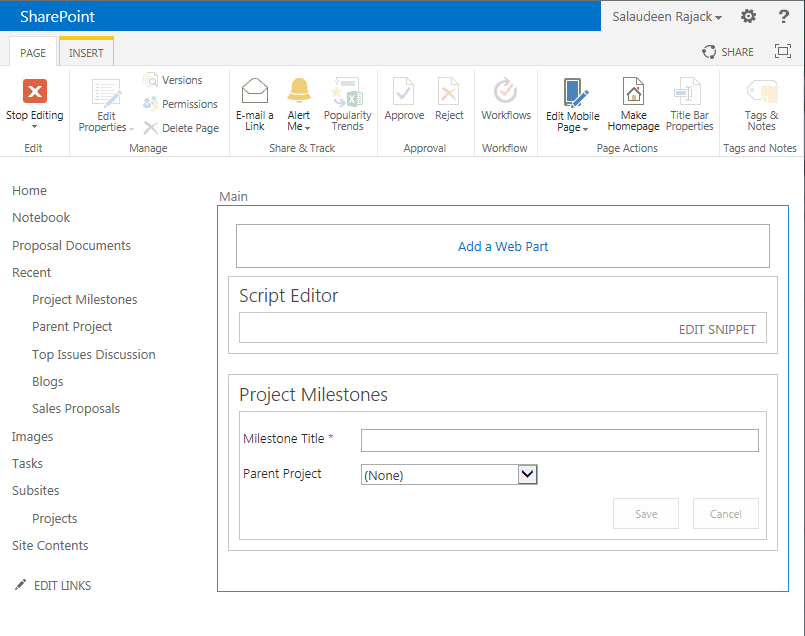 |
I have tested this script on SharePoint 2013 to get the size of the sub-sites with in a Site Collection.
#Get Size of all Sub-sites in a Site Collection
[void][System.Reflection.Assembly]::LoadWithPartialName("Microsoft.SharePoint")
# Function to calculate folder size
Function CalculateFolderSize($Folder)
{
    [long]$FolderSize = 0
    foreach ($File in $Folder.Files)
    {
        #Get File Size
        $FolderSize += $file.TotalLength;
        #Get the Versions Size
        foreach ($FileVersion in $File.Versions)
        {
            $FolderSize += $FileVersion.Size
        }
    }

    #Iterate through all subfolders
    foreach ($SubFolder in $Folder.SubFolders)
    {
        #Call the function recursively
        $FolderSize += CalculateFolderSize $SubFolder
    }

    return $FolderSize
}

$SiteURL = "http://MySPSite/sites/portal"
$Site = new-object Microsoft.SharePoint.SPSite($SiteURL)
foreach($Web in $Site.AllWebs)
{
    #Call function to calculate Folder Size
    [long]$WebSize = CalculateFolderSize($Web.RootFolder)
    #Get Recycle Bin Size
    foreach($RecycleBinItem in $Web.RecycleBin)
    {
        $WebSize += $RecycleBinItem.Size
    }
    $Size = [Math]::Round($WebSize/1MB, 2)
    Write-Host $web.Url ":`t" $Size "MB"
}

Orphaned User? Who are they?
Orphaned users are those who have been disabled/removed from Active Directory, but still have permissions to sites, lists and items. Internally, SharePoint keeps them in "UserInfo" table of the content database for meta-data such as created/modified by fields.
SELECT * FROM [MOSS_Content_DatabaseName].[dbo].[UserInfo] WHERE tp_Login='DOMAIN\UserID'
