Saturday, August 24, 2013

How to Configure SSL for a SharePoint Web Site

SSL is a kind of security protocol that more and more web sites are using to protect their information. Similarly, SharePoint has a SSL feature that can be enabled in Central Administration. This blog will show you how.
SSL Configuration:
Step 1. Server Roles
1. Login to SharePoint Server as administrator.
2. Open Server management and click “Server Roles.”
3. In the Roles summary click “Add Roles.”
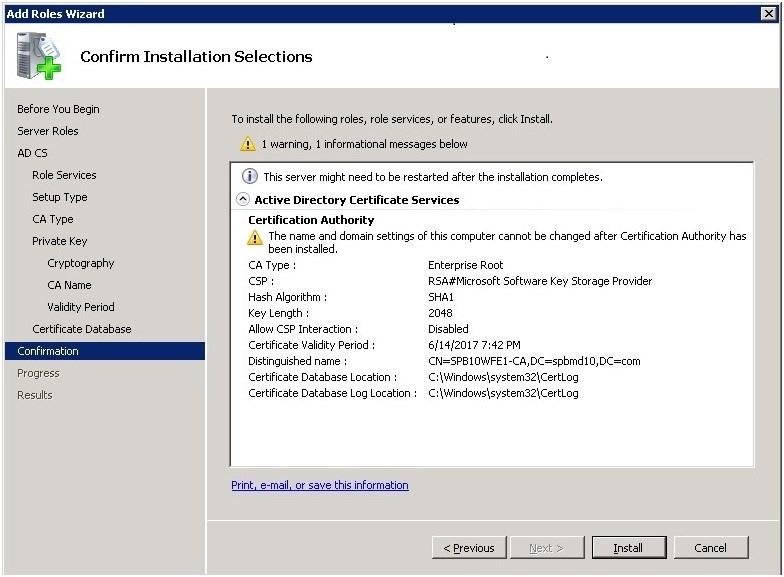
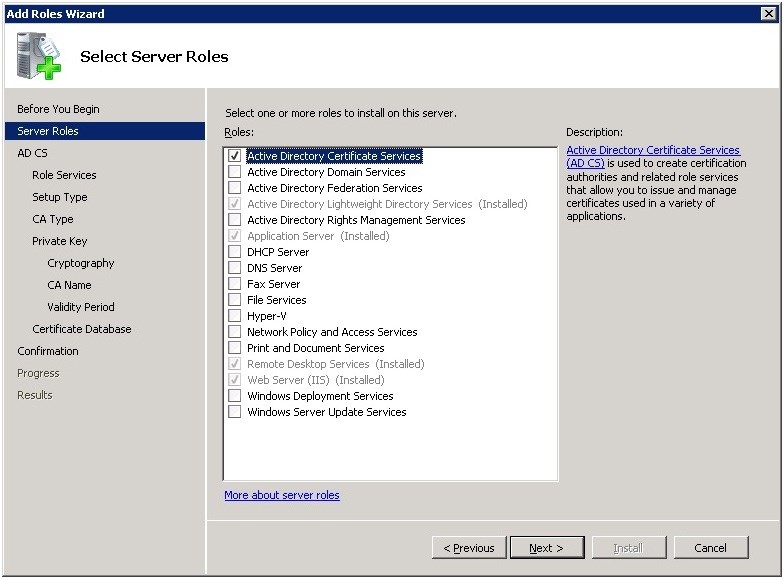
4. Click the “Next” button and select “Active Directory Certificate Services” in the Select Server Roles window.
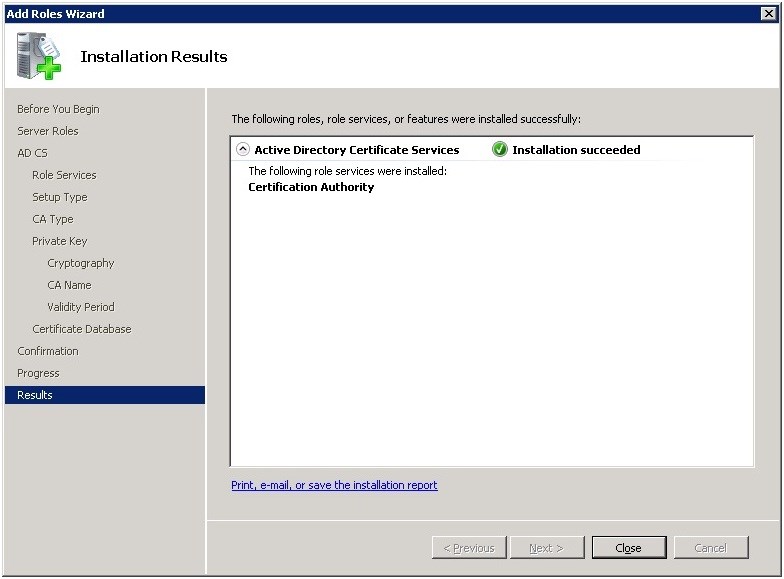
5. Click the “Next” button until it configures and installs successfully.
6. Select the following two role services “Certification Authority” and “Certification Authority Web Enrollment.”
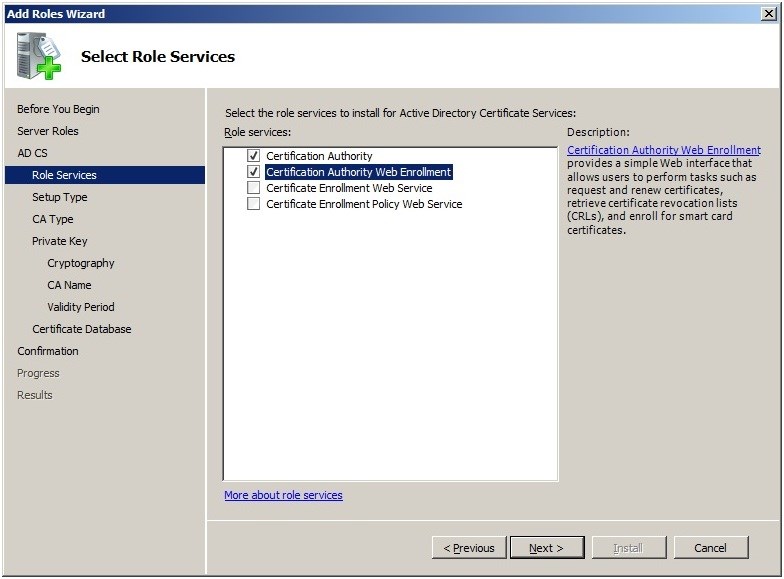
7. Click the “Next” button.
Step 2. IIS Manager
1. Run IIS manager as administrator.
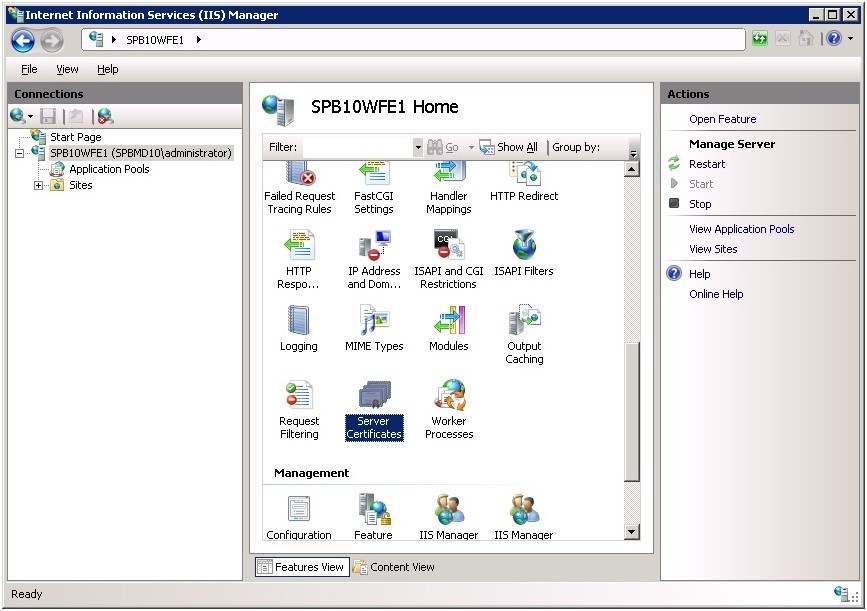
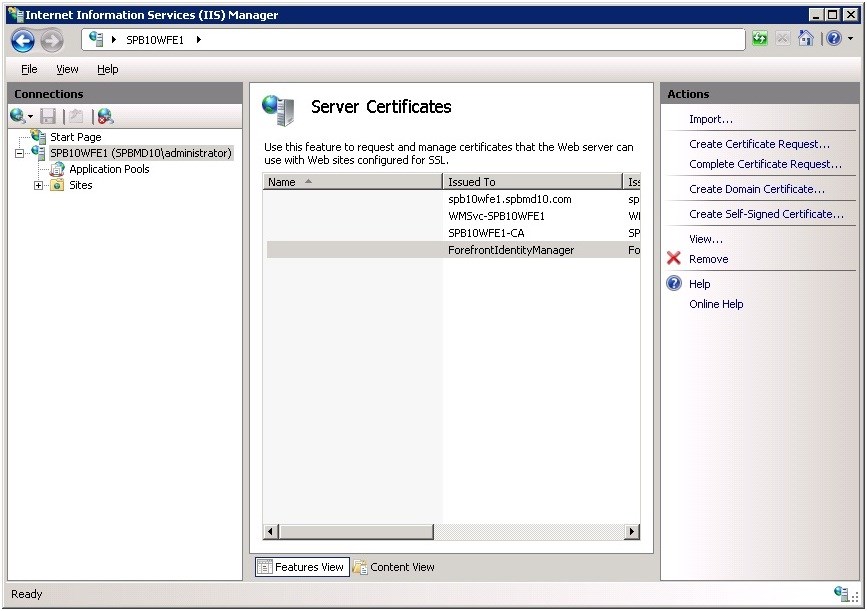
2. Double click this icon Server Certificates and enter the Server Certificates page.
3. Click “Create Certificate Request in Actions” section.
4. Open the “Request Certificate” window and input the correct data for every field.
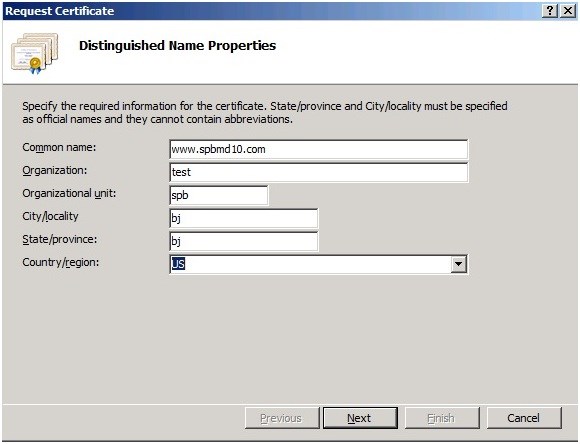
5. Click the “Next” button until the file name page appears.
6. Specify the file name for the certificate request.
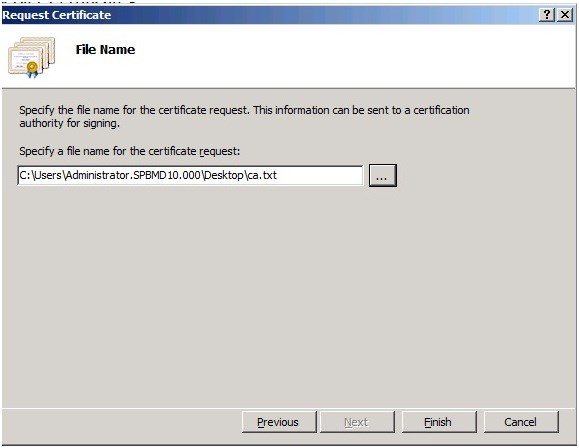
7. Click the “Finish” button, the request file is created successfully.
Step 3. CerSrv Site
1. Open the CerSrv site to complete the task request a certificate.
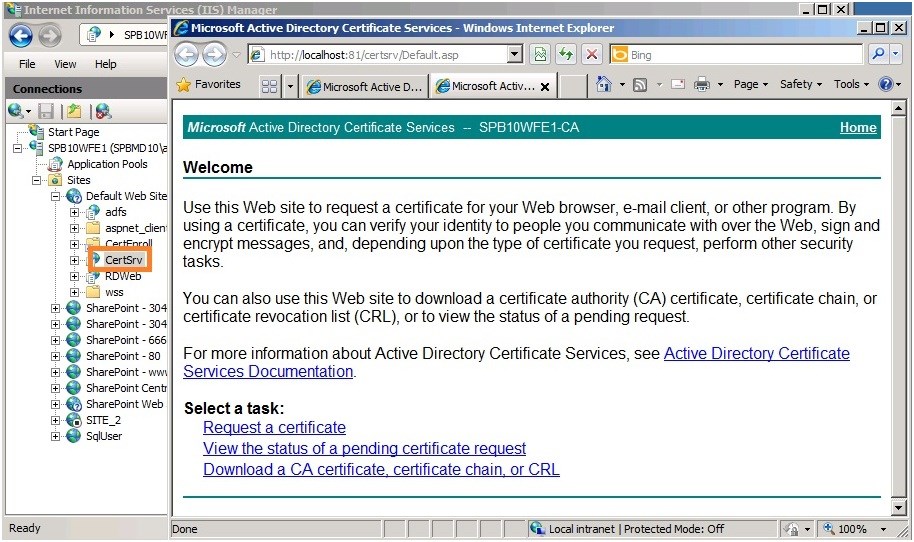
2. Click the Request a certificate link to open the new page.
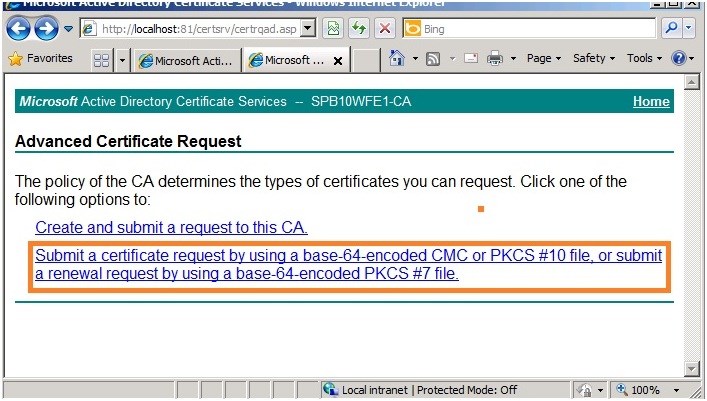
3. Click “advanced certificate request” to open the new page and click the second option “Submit a certificate request by using a base-64-encoded CMC or PKC…
4. Copy the contents of the certificate file created on Step2.6 to the textbox base-64-encoded certificate request.
5. Select “Web Server” in the Certificate Template drop-down menu.
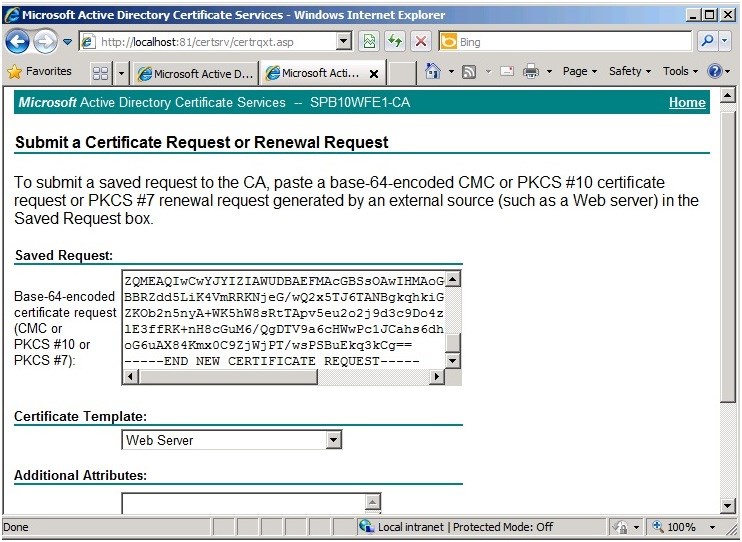
6. Click the “Submit” button. The will then be Certificate issued.
7. Download the certificate.
8. Click the “Complete certificate request” button.
9. Select the “certification authority’s response” and “Friendly name.”
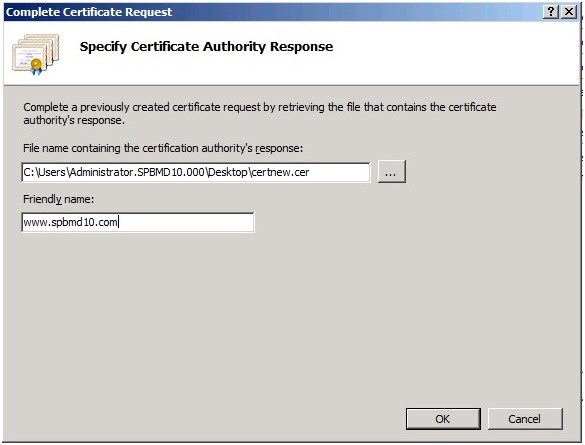
10. Click the “OK” button to create the server certificates.
Step 4. Central Administration
1. Expand the sites in IIS Manager and select “Central Administration.”
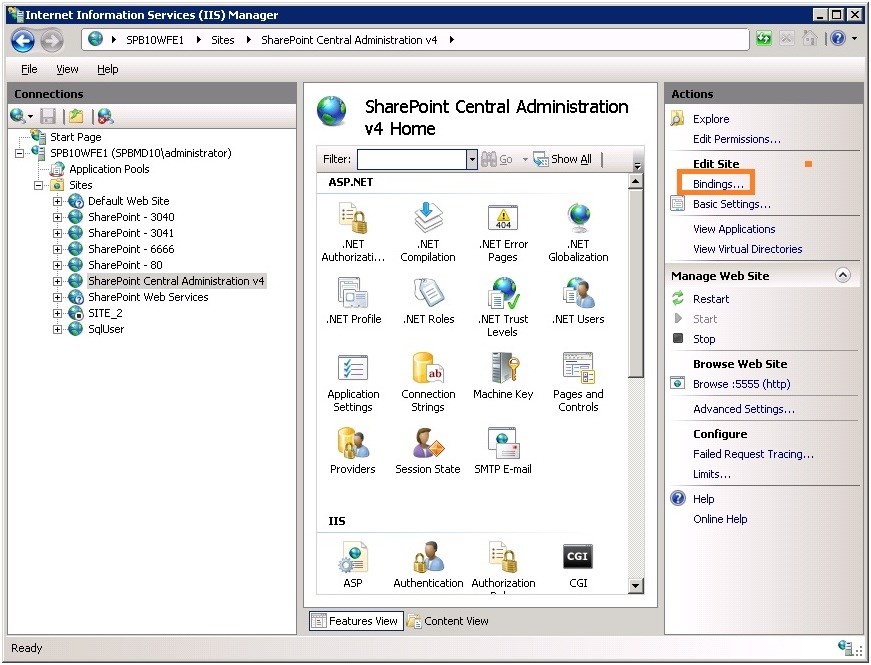
2. Click “Bindings” in the “Edit Site” section on the right side.
3. The Site Binding Window will popup.
4. Add the https type and select the SSL certificate.
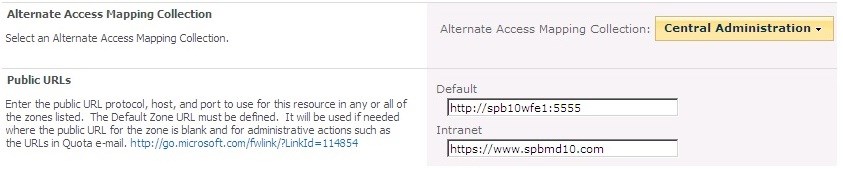
5. Add the access mapping in CA.
Note: Do not forget add the host record on DNS server.
Step 5. Testing the Site
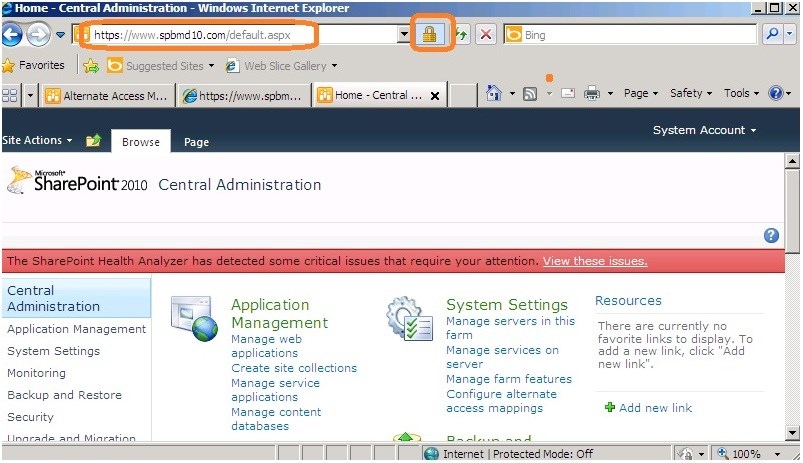
1. Let’s access CA using the following URL https://www.spbmd10.com.
Note: You might need to first import the certificate to the current browser.
2. If you see the following, then we have successfully added SSL to a SharePoint website.
Using Content Deployment to Copy One Site Collection to Another in SharePoint 2010

In simple terms, Content Deployment in SharePoint 2010 is used to deploy the content from one site to another site. We can set the content deployment jobs (incoming and outgoing) using SharePoint Central Administration 2010.
The two-farm topology is a standard Internet site topology and is typical of topologies that are used to publish an Internet site. It is usually composed of two server farms: one to host the authoring site collection and the other to host the production site collection.

It is important to be aware that content deployment is a one-way process. The content deployment feature does not support round-trip synchronization from source to destination and vice versa. Creating new content or changing existing content on the destination site collection can cause content deployment jobs to fail. Because of this, it is usually recommended to restrict permissions on the destination site collection so that only specific users can make direct changes to content that is stored within that site collection.
We will now go through a typical process that will copy one site collection to another with content deployment.
PROCESS OVERVIEW
Content Deployment in SharePoint 2010 is composed of the following three processes.
  1. Create two Web Applications in separate content databases and create site collections in the web applications.
  2. Configure Content deployment, paths and jobs -> Run jobs.
  3. Check the deployment status and the destination site collection’s content.
I. CREATING THE WEB APPLICATIONS AND SITE COLLECTIONS
1. First, create two web apps and ensure the two are in separate content databases.
  • http://spy2010
  • http://spy2010:1111
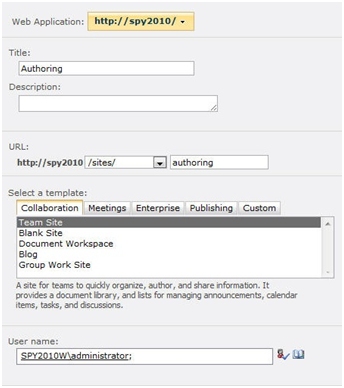
2. Second, create site collection http://spy2010/sites/authoring and select the “Team Site” template.
3. The initial content deployment destination must be a blank site collection.
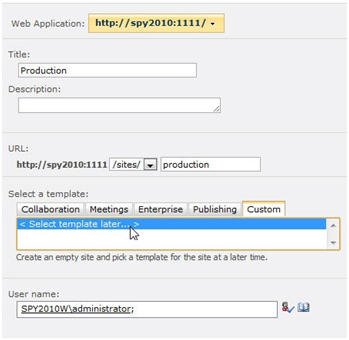
4. Create a site collection and ensure that you select “<Select template later>.”
NoteDO NOT create a site collection using “Blank Site” template, as this does not count as an empty site collection and content deployment will fail.
5. The site collection in port 1111 is just http://spy2010:1111/sites/production.
II. Configure Content deployment, paths and jobs in CA
1. Navigate to Central Administration -> General Application Settings -> Content Deployment -> Configure Content Deployment.
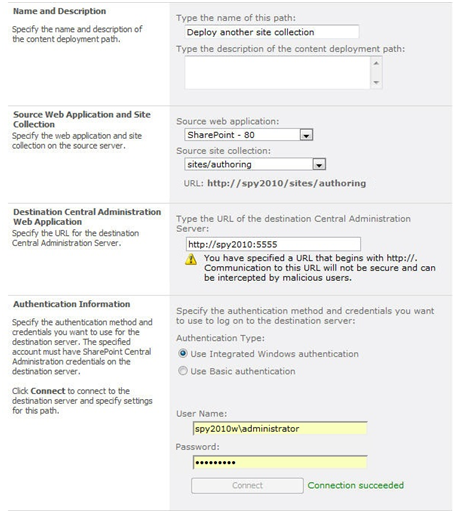
2. Configure new deployment path
Note: A content deployment path is required to define a one-to-one relationship between a source and destination site collection for the purposes of content deployment. Once you have created a path, jobs can be scheduled and run on an ad-hoc basis to deploy additional content as required.
3. Select your “authoring” site collection as the source and “production” site collection as the destination.
4. Enter the current central administration address, including the port number.
Note: We will need to test the connection to make sure the destination site collection list populated correctly.
Create a deployment job and run it
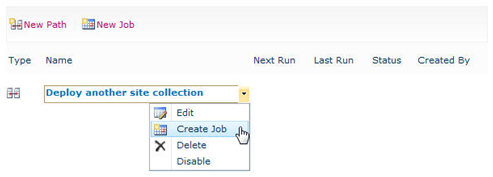
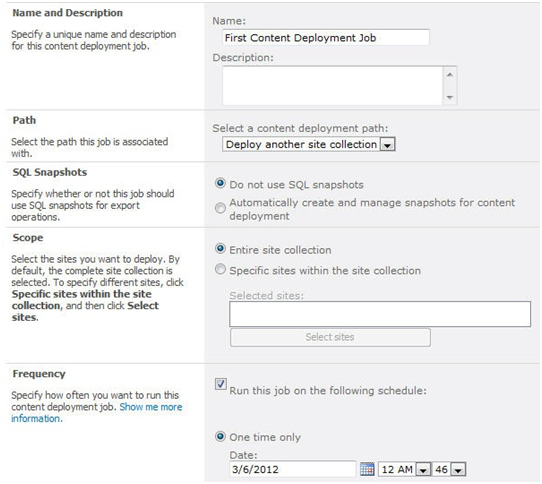
5. We will need to create a deployment job. Jobs and deployment paths have a one-to-one relationship, so we will need to create at least one job for each path that we have specified.
6. Select the “One time only” radio button to kick the job off immediately.
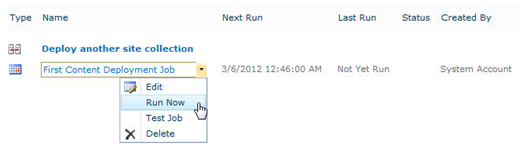
7. Create a schedule or run the job now using the “One time only” option to test your new deployment path.
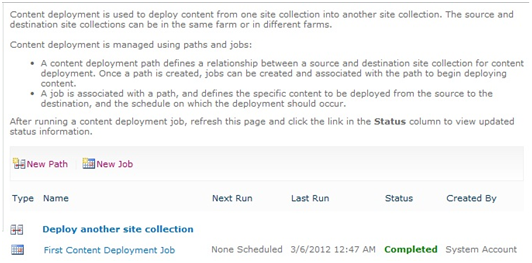
8. You can view current job status on the “Manage Content Deployment Paths and Jobs” page.
9. Once the job status becomes “Completed,” the “Production” site collection’s content has been copied successfully.
III. Check deployment status and destination site collection’s content
1. Navigate to Central Administration -> General Application Settings -> Content Deployment -> Check deployment of specific content.
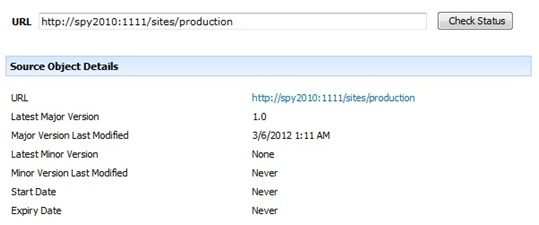
2. We can check the “production” status on the following page.
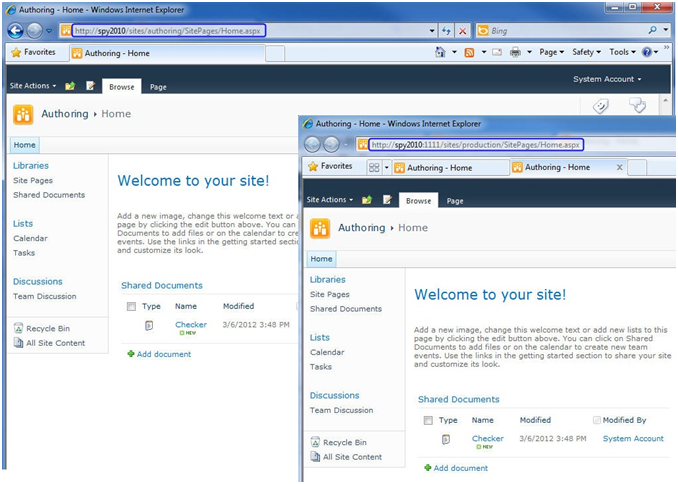
3. When we login to “production,” we can see that the content is now same as the content in “authoring.”

How to Create Mysite in SharePoint 2010

SharePoint My Sites should be thought of as a collaboration of dashboards – it’s a user’s window into all things SharePoint and all things both inside and outside the organization. It’s an aggregated view of activities, relationships, conversations, and communications. Using Facebook as the model of a personalized portal to the web… I can receive updates about friends/family, movies, bands, news, and more all in the Facebook environment by simply subscribing/ liking/ following. The newsfeed is an incredibly efficient way of seeing what’s going on, while filtering out the noise.
Solution
To complete My Sites in SharePoint 2010, we should complete the following four important steps:
1) Create a new Web Application for My Sites.
2) Create the My Site Host Site Collection.
3) Setup My Sites and manage the properties for My Sites application.
4) Use My Sites with a normal user.
This article I will introduce how to create and configure a user’s My Sites in SharePoint 2010.
Create the My Site Web Application
1. To create the My Sites web application, ?enter:
CA > Application Management > Manage web applications.

2. Create a new web app page:
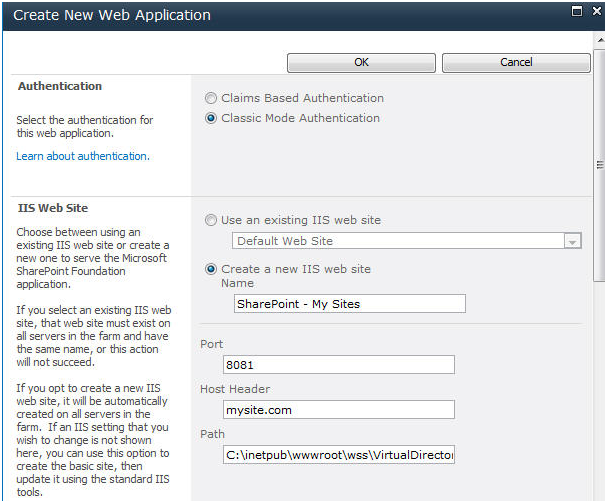
Authentication: Select the default authentication -> “Classic”.
IIS Web Site:
  • Specify a port for the new web application(you’d better not set 80 as the port number)
  • We can named the web site “SharePoint – My Sites” and type an Host Header.
  • For the Application Pool, we set Domain Administrator as managed account.

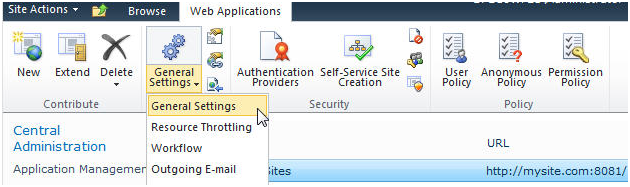
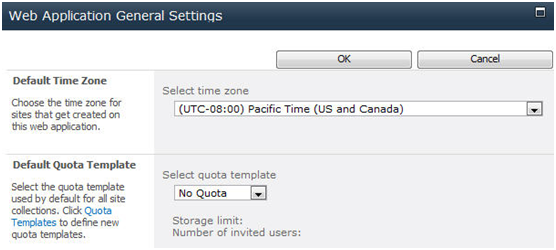
3. After “My Sites” is created, click on “General Settings” for the web application, and then select a default time zone.


Create the My Site Host Site Collection
Now that we have successfully created our My Site Web Application, we can now proceed to create our My Site Host Site Collection. This will be the top level site that will house our individual user’s site collections.
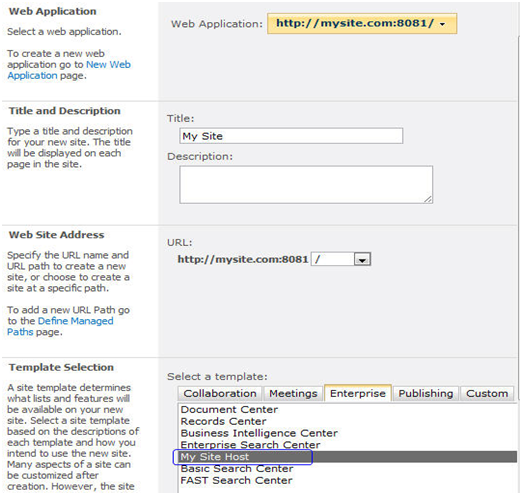
1.To create the My Sites Host site collection, enter:
CA > Application Management > Create site collections.

Setup My Sites and manage properties for the web application

Now that we have successfully provisioned our My Site Web Application and Top Level Site Collection that will host our My Sites, we can continue to configure our My Site Settings.
1. To setup My Sites, enter: CA > Application Management > Manage service applications > User Profile Service Application.
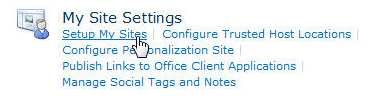
2. Click on “User Profiles Service Application“?and then click on “Setup My Siteslocated under My Site Settings. (To complete above steps, we must ensure that the User Profile Service is configured completely and worked normally.)

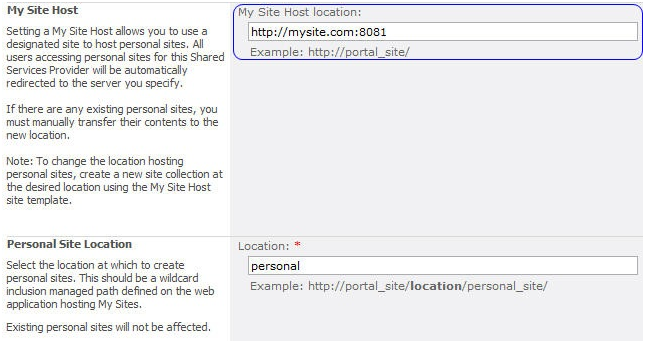
3. Enter the URL which exists in the My Sites site collection we have just created and the personal site location.

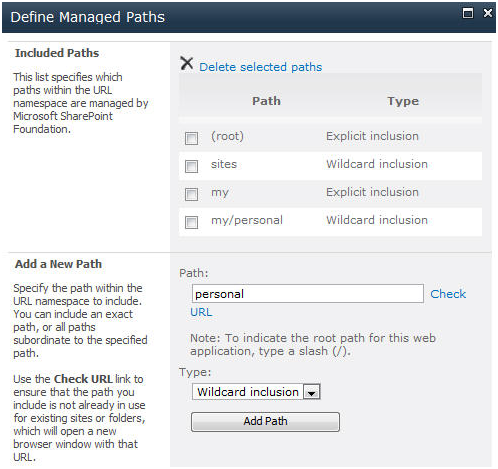
4. Add the managed path for the “My Sites” web application. Because we have specified “personal” as our Personal Site Location, we will need to define our managed path against our My Sites Web Application.
a. To managed path for “My Sites” web application, enter CA > Application Management > Manage web applications.
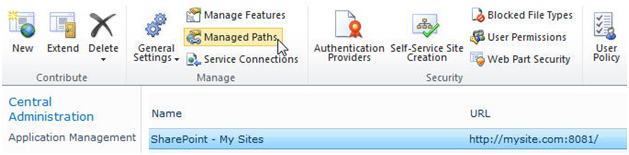
b. Click on My Sites Web Application and click on Managed Paths from the Ribbon.

5. Add “personal” as a Wildcard inclusion, click “Add Path and click “OK“?button.

6. Our last configuration step provides our users with the privilege to provision their own My Site’s by enabling the Self-Service Creation.
a. Enter CA > Application Management > Manage web applications.
b. Click on your My Site Web Application and click on Self-Service Site Creation.

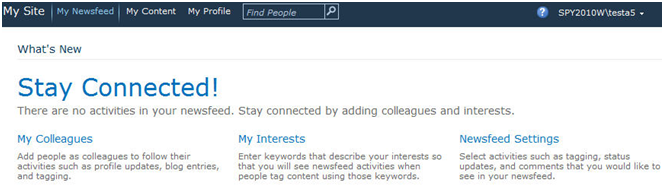
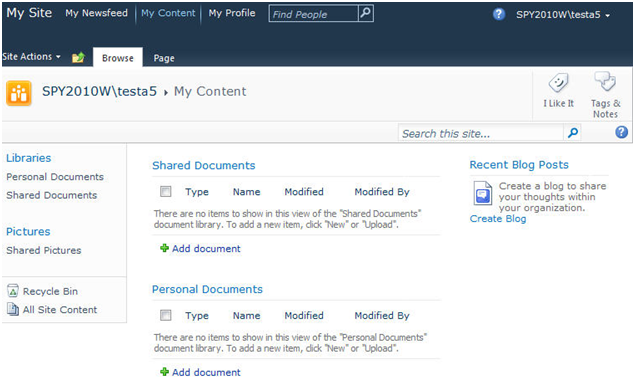
7. It is time to try if My Sites is configured successfully. Enter the specified URL in browser, then enter main page of My Sites.

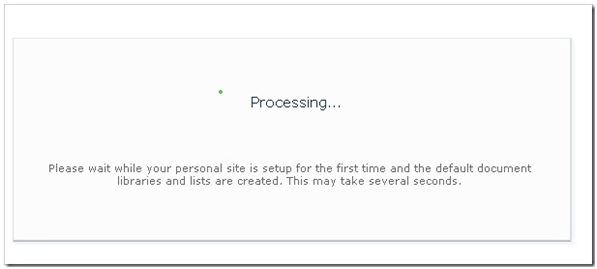
8. Then click “My Content,” after the loading, user can enter his own page.


As you can see, we have now successfully completed our setup of a My Site Host which will house our user’s My Sites.

How to Configure the Search Service in SharePoint 2010


After installing SharePoint 2010, the search web part does not work. When I try searching for something in the search box, SharePoint displays the following error message “The search request was unable to connect to the Search Service.” This is probably due to the fact that the Search Service was never setup. This article will go through the process of setting up your SharePoint 2010 search box step-by-step.
1. We need to first start the search service application in Central Admin.
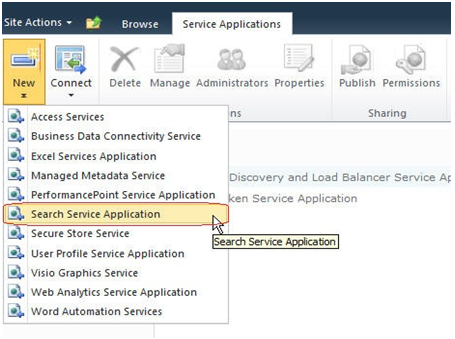
2. Go to Application Management -> Manage service application.

3. Then start a new “Search Service Application.”

4. Provide the application name, in this case “Service Search Application.”

5. Provide a search service account.

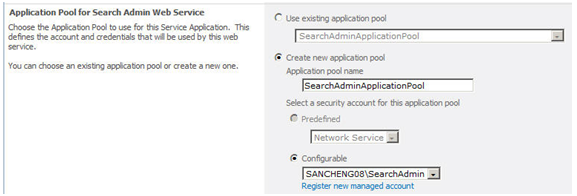
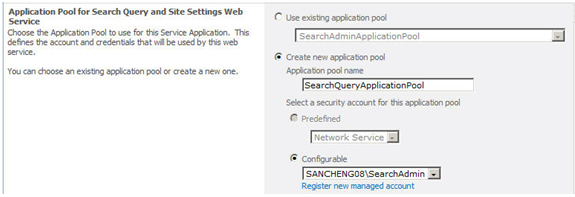
6. Configure application pools for both the “Search Admin Web Service” and the “Search Query and Site Settings Web Service.”


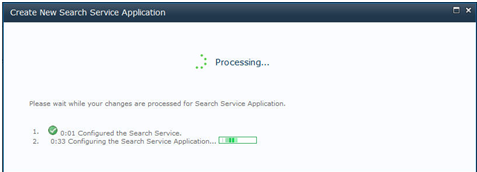
7. Click “OK” and wait for SharePoint to process the request. This may take several minutes.

8. A message will then appear if the search service application was successfully created.

9. OK, the search service application has been created, now we need to do some configuration work.
10. Once again, go to Application Management -> Manage service applications.
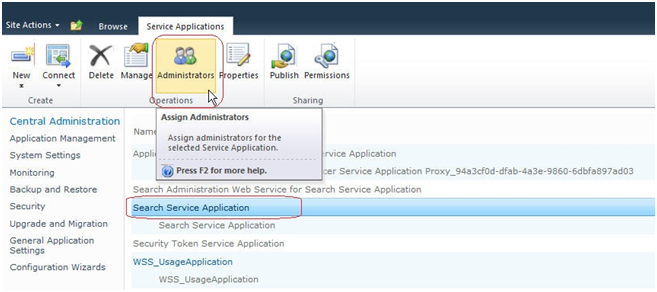
11. Select “Search Service Application,” then click the “Administrators ribbon button to configure the search service for administrators.

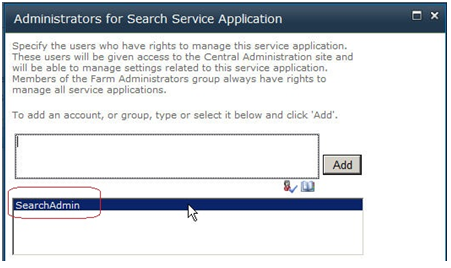
12. Select “SearchAdmin.” This is the service account we previously created in the search service application.

13. Now to assign the permissions.

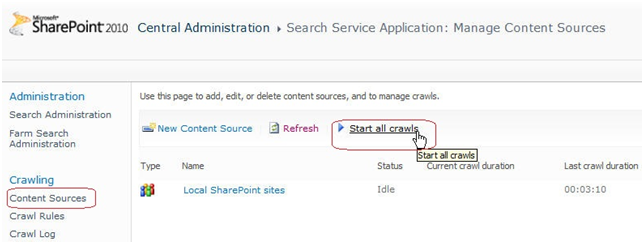
14. Almost done, go to Search Service Application -> Content Sources and select “Start all crawls.”

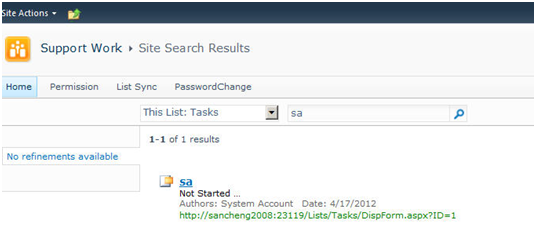
15. Once the crawl has completed, the search box is now ready to use.